Testing the Handoff: When Your Desktop App Opens a Browser

Plenty of desktop applications rely on a browser for at least one part of the user journey. A "View Report" button opens a dashboard, a "Pay Now" button opens a payment portal, a login screen redirects to a web based identity provider. When teams test these flows, the desktop app and the website are usually treated as two separate systems with two separate test suites, and the handoff between them, the part where a click is supposed to result in the right page loading with the right content, often goes unverified. In this post we'll build a small, real WPF application with a single button, and write one automated test that clicks that button and then verifies what actually opens in the browser, combining desktop automation (FlaUI) and web automation (Playwright) in a single test.
The Problem: When a Desktop App Hands Off to a Browser
A desktop application and the website it opens are, from a testing point of view, two completely different technologies. The desktop app might be built with WPF, WinForms, or Electron, and automated with a UI automation library for that platform. The website is automated with something like Playwright or Selenium. Because the tooling is different, it's tempting to test them independently: one suite clicks around the desktop app and checks that nothing crashes, another suite loads the website directly by URL and checks that the page renders correctly.
The gap between those two suites is exactly where handoff bugs live. A button might open the wrong URL after a copy change, a query parameter might get dropped, or the page might load but show stale or missing data because the desktop app failed to pass the right context. None of that gets caught by testing each side in isolation, because neither suite ever asks the question that actually matters to the user: after I click this button, does the correct page show up with the correct content?
Closing that gap doesn't require a single, unified automation framework. It just requires a test that is willing to use two different tools, one after the other, inside the same test case. That's what we'll build for the rest of this post.
Two Ways to Bridge the Gap
Once you decide to test the handoff itself, there are two practical ways to do it, and they trade realism for stability.
The first is a true end to end browser launch. The desktop app actually launches the user's real browser, and your test then takes control of that same browser instance to verify what loaded. This is the most faithful reproduction of what a user experiences, but it's also the harder path: you typically need to launch the browser with remote debugging enabled ahead of time and then have your web automation tool connect to it, since there's no built in way to "catch" a browser window that something else just opened.
The second is a hybrid functional test. The desktop automation layer clicks the button and confirms the click registered, and the web automation layer opens the destination page on its own, independently, rather than reusing the browser the desktop app launched. This proves slightly less, since you're not verifying the actual browser launch mechanism, but it's far easier to set up and much less flaky, since each tool is working with a browser instance it fully controls from the start.
For the example in this post, we'll go with the hybrid approach. It's the one you'll reach for most often in practice, and it's a better starting point if this pattern is new to your test suite.
The Sample App: A Button That Opens a Report
To keep the example focused on the handoff itself, the sample app is intentionally small: a WPF window with one button and one status label. Clicking the button opens a static local page that stands in for a real report, and the label updates so we have something on the desktop side to confirm the click actually did something.
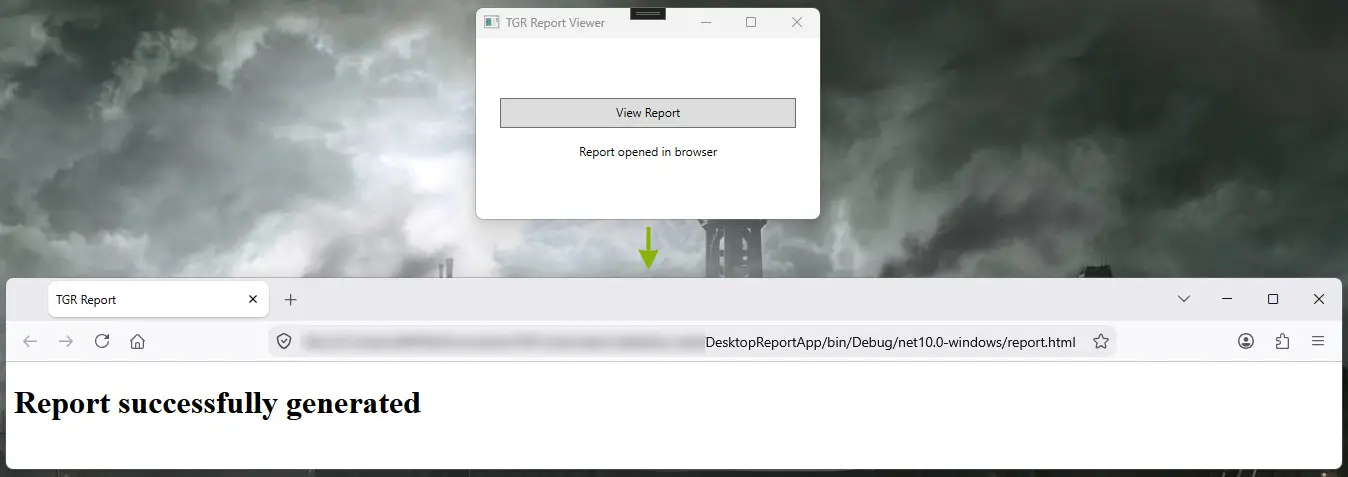
The button and label are marked with an AutomationId. Without it, our automation tool would have to locate controls by their visible text or position, both of which break the moment someone edits the copy or resizes the window. Setting an explicit id gives us a stable handle to find each control by later.
<Button x:Name="ViewReportButton"
        AutomationProperties.AutomationId="ViewReportButton"
        Content="View Report"
        Click="ViewReportButton_Click" />
<TextBlock x:Name="StatusText"
           AutomationProperties.AutomationId="StatusText" />
The click handler behind that button does two things: it opens report.html in the user's default browser, and it updates the status label so the desktop side of the test has something to assert on before it even looks at the browser.
private void ViewReportButton_Click(object sender, RoutedEventArgs e)
{
    var reportPath = Path.Combine(AppContext.BaseDirectory, "report.html");
    Process.Start(new ProcessStartInfo(reportPath) { UseShellExecute = true });
    StatusText.Text = "Report opened in browser";
}
report.html itself is deliberately trivial. Its only job is to give Playwright something concrete to check for once the button has been clicked.
<h1>Report successfully generated</h1>
That's the whole application under test. Everything from here on is about automating the two halves of the click: the button on the desktop, and the page it opens.
Automating the Desktop Side with FlaUI
FlaUI is a .NET wrapper around Windows UI Automation, the same OS level API that screen readers use to inspect and drive native controls. Launching the app under test starts it as a real process, and connecting UIA3Automation to it gives us a way to read and interact with its window from the outside, without touching any of the app's own code.
Right after launch there's a brief window where the process exists but its main window handle doesn't yet, so we wait for that before asking for the window itself.
using var app = Application.Launch(appExePath);
using var automation = new UIA3Automation();
app.WaitWhileMainHandleIsMissing(TimeSpan.FromSeconds(5));
var mainWindow = app.GetMainWindow(automation)!;
With the window in hand, we can look for the button by the AutomationId we set in the XAML earlier. FindFirstDescendant walks the window's automation tree for the first match, and AsButton() gives us a strongly typed wrapper with a Click() method. Calling it performs a real UI Automation invoke on the control, the same kind of action a user or a screen reader would trigger, rather than calling our C# event handler directly.
var viewReportButton = mainWindow.FindFirstDescendant(
    cf => cf.ByAutomationId("ViewReportButton"))!.AsButton();

viewReportButton.Click();
At this point the desktop side of the handoff has happened: the button has been clicked, and the app's click handler has fired and opened the browser. What's left is to go check what that actually produced.
Automating the Web Side with Playwright
Since we're following the hybrid approach, we don't try to attach to whatever browser window the desktop app just opened. Instead, we work out where report.html lives on disk, which we can do because we already know the path to the app's executable from launching it, and turn that into a file URL. Playwright then opens that URL in a browser instance it fully owns from the start.
var reportPath = Path.Combine(Path.GetDirectoryName(appExePath) ?? ".", "report.html");
var reportUrl = new Uri(reportPath).AbsoluteUri;

using var playwright = await Playwright.CreateAsync();
await using var browser = await playwright.Chromium.LaunchAsync();
var page = await browser.NewPageAsync();
await page.GotoAsync(reportUrl);
From here it's an ordinary Playwright assertion. Expect is web first, meaning it retries automatically until the text shows up or the timeout is reached, so we don't need to add our own wait for the page to finish rendering.
await Assertions.Expect(page.GetByText("Report successfully generated")).ToBeVisibleAsync();
That's both halves covered separately. Next, we'll put them in the same test method and see what it takes to make that combination actually pass reliably.
Wiring the Two Layers Into One Test
Before either layer can run, the test needs the path to the app's compiled executable. Since the test project has a project reference to the app project, we can get this at runtime through reflection instead of hardcoding a build output path that would drift the moment someone switches configuration or target framework.
private static string GetAppExecutablePath()
{
    var appAssembly = typeof(MainWindow).Assembly;
    return Path.ChangeExtension(appAssembly.Location, ".exe");
}
With that in place, the two automation layers from the previous sections slot into a single test method one after another: launch and click on the desktop side, then navigate and assert on the web side, closing the app once both have run.
[Fact]
public async Task ClickingViewReport_OpensReportInBrowser()
{
    var appExePath = GetAppExecutablePath();

    using var app = Application.Launch(appExePath);
    using var automation = new UIA3Automation();
    app.WaitWhileMainHandleIsMissing(TimeSpan.FromSeconds(5));
    var mainWindow = app.GetMainWindow(automation)!;

    var viewReportButton = mainWindow.FindFirstDescendant(
        cf => cf.ByAutomationId("ViewReportButton"))!.AsButton();
    var statusText = mainWindow.FindFirstDescendant(
        cf => cf.ByAutomationId("StatusText"))!.AsLabel();

    viewReportButton.Click();
    Assert.Equal("Report opened in browser", statusText.Text);

    var reportPath = Path.Combine(Path.GetDirectoryName(appExePath) ?? ".", "report.html");
    var reportUrl = new Uri(reportPath).AbsoluteUri;

    using var playwright = await Playwright.CreateAsync();
    await using var browser = await playwright.Chromium.LaunchAsync();
    var page = await browser.NewPageAsync();
    await page.GotoAsync(reportUrl);

    await Assertions.Expect(page.GetByText("Report successfully generated")).ToBeVisibleAsync();

    app.Close();
}
This compiles and looks complete. Running it, however, uncovered a timing bug that's worth walking through on its own.
A Real Gotcha: Reading the UI Before WPF Catches Up
The first run of the test above failed, and not on the Playwright side. It failed on the very first assertion, right after the click.
Assert.Equal() Failure: Strings differExpected: "Report opened in browser"
Actual: ""
The button had clearly been clicked, the browser opened, so the failure wasn't in the automation itself. The cause was a race condition: FlaUI's Click() returns as soon as Windows reports that the invoke landed on the control, but that says nothing about whether WPF's own dispatcher has finished running our click handler and pushing the new text into the TextBlock. Reading the property on the very next line can win that race and see the old, empty value.
The fix is to stop assuming the value is already there and instead poll for it, the same way we already wait for the window handle after launching the app. FlaUI ships a Retry helper for exactly this.
viewReportButton.Click();

Retry.WhileEmpty(() => statusText.Text, TimeSpan.FromSeconds(5));
Assert.Equal("Report opened in browser", statusText.Text);
Retry.WhileEmpty keeps re-reading the label's text until it's non-empty or five seconds pass, instead of sleeping a fixed amount of time or trusting that the UI has already settled. With that change, the test passes consistently.
This is worth generalizing beyond this one label. Any test that spans two automation layers has a seam where one side has "finished" acting but the other side hasn't necessarily finished reacting yet, and nothing enforces that they stay in sync. Assume that seam exists and wait for a concrete signal on the other side of it, rather than for a fixed amount of time.
Where This Pattern Actually Pays Off
A "View Report" button is a convenient example because it's small enough to fit in a blog post, but the same shape of test shows up anywhere a desktop application delegates part of a user journey to the web. A desktop client that redirects to a web based identity provider for login, a checkout flow that hands off to a hosted payment portal, or a management console that opens a browser based dashboard for detailed reporting are all the same handoff in disguise, and all benefit from the same kind of test: confirm the desktop side triggered the action, then confirm the web side received it correctly.
The specific tools will change depending on what you're testing. FlaUI only works on Windows, so a macOS app would reach for something like Apple's Accessibility APIs, and an Electron app could often skip a separate desktop automation library entirely and drive its window with Playwright directly. What doesn't change is the underlying idea: treat the handoff itself as something worth asserting on, not just an implementation detail sitting between two suites that never talk to each other.
Wrapping Up
None of the individual pieces here are complicated on their own. FlaUI clicking a button and Playwright checking a page are both things most test engineers have done separately dozens of times. The only real change is where the seam sits: instead of ending the desktop test once the click fires and starting the web test from a URL typed in by hand, one test carries the context across, which is the part that actually mirrors what a user does.
It also comes with its own kind of flakiness to watch for, the empty status label in this post being a small example of a larger pattern: two independent automation layers won't naturally agree on when they're both ready. Building that expectation in from the start, rather than discovering it from a failing assertion, is most of what makes this kind of test worth maintaining.
The complete code examples from this blog are available on our GitHub page, feel free to explore, clone, and adapt them to your own projects.