Automating Push Notification Testing with Appium

Testing push notifications manually is tedious and error-prone. Every time you make a change to your notification logic, you need to trigger the notification, pull down the drawer, tap it, and verify the app responds correctly. Do this across multiple devices, OS versions, and scenarios, and you've got yourself a time-consuming bottleneck in your QA process. The good news? Appium can automate this entire flow. In this tutorial, I'll show you how to write a simple, reliable Appium test in Kotlin that triggers a notification, verifies it appears in the notification drawer, taps it, and confirms your app handles it correctly. Let's dive in.
Prerequisites & Setup
First, you'll need Node.js installed on your machine. Once that's ready, install Appium globally:
npm install -g appium
Next, install the UiAutomator2 driver, which Appium uses to communicate with Android devices:
appium driver install uiautomator2
Verify Appium is installed correctly by running:
appium
You should see output indicating the Appium server is running on http://127.0.0.1:4723.
Make sure you have an Android emulator running or a real device connected. Verify this with:
adb devices
You should see at least one device listed. If not, start an emulator from Android Studio or connect your physical device via USB with USB debugging enabled.
Project Dependencies
Create a new Kotlin project (or add to an existing one) and add these dependencies to your build.gradle.kts:
plugins {
    kotlin("jvm") version "2.0.0"
}

repositories {
    mavenCentral()
}

dependencies {
    testImplementation("io.appium:java-client:9.1.0")
    testImplementation("org.seleniumhq.selenium:selenium-java:4.16.1")
    testImplementation("org.testng:testng:7.9.0")
}

tasks.test {
    useTestNG()
}
The key dependencies here are appium:java-client for the Appium API, selenium-java for WebDriver functionality, and testng for test structure and assertions. If you prefer JUnit over TestNG, you can swap it out, but the examples in this tutorial use TestNG.
Once your dependencies sync, you're ready to start writing tests.
The Demo App
For this tutorial, I've built a simple Android app in Kotlin that demonstrates the notification flow we'll be testing. The app has a single screen with a button labeled "Send Push Notification" and two text indicators that show the current state.
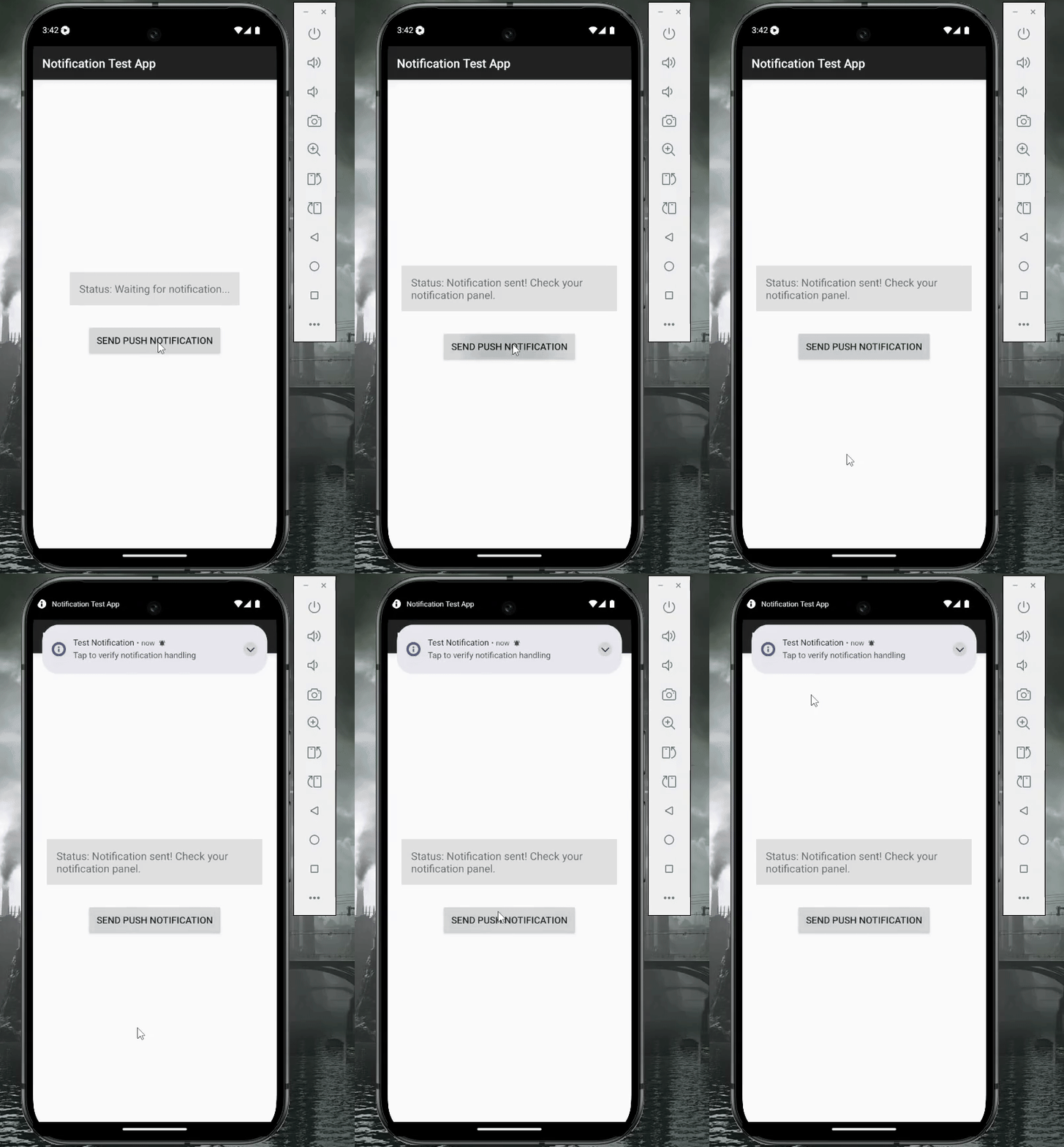
Push Notification Trigger in the Demo App
When you tap the button, the app creates a local notification that appears in your notification drawer. The status indicator updates to show "Notification sent! Check your notification panel." When you tap the notification from the drawer, the app reopens and displays a success message: "Notification Opened Successfully!" along with an updated status showing "Notification was clicked!"
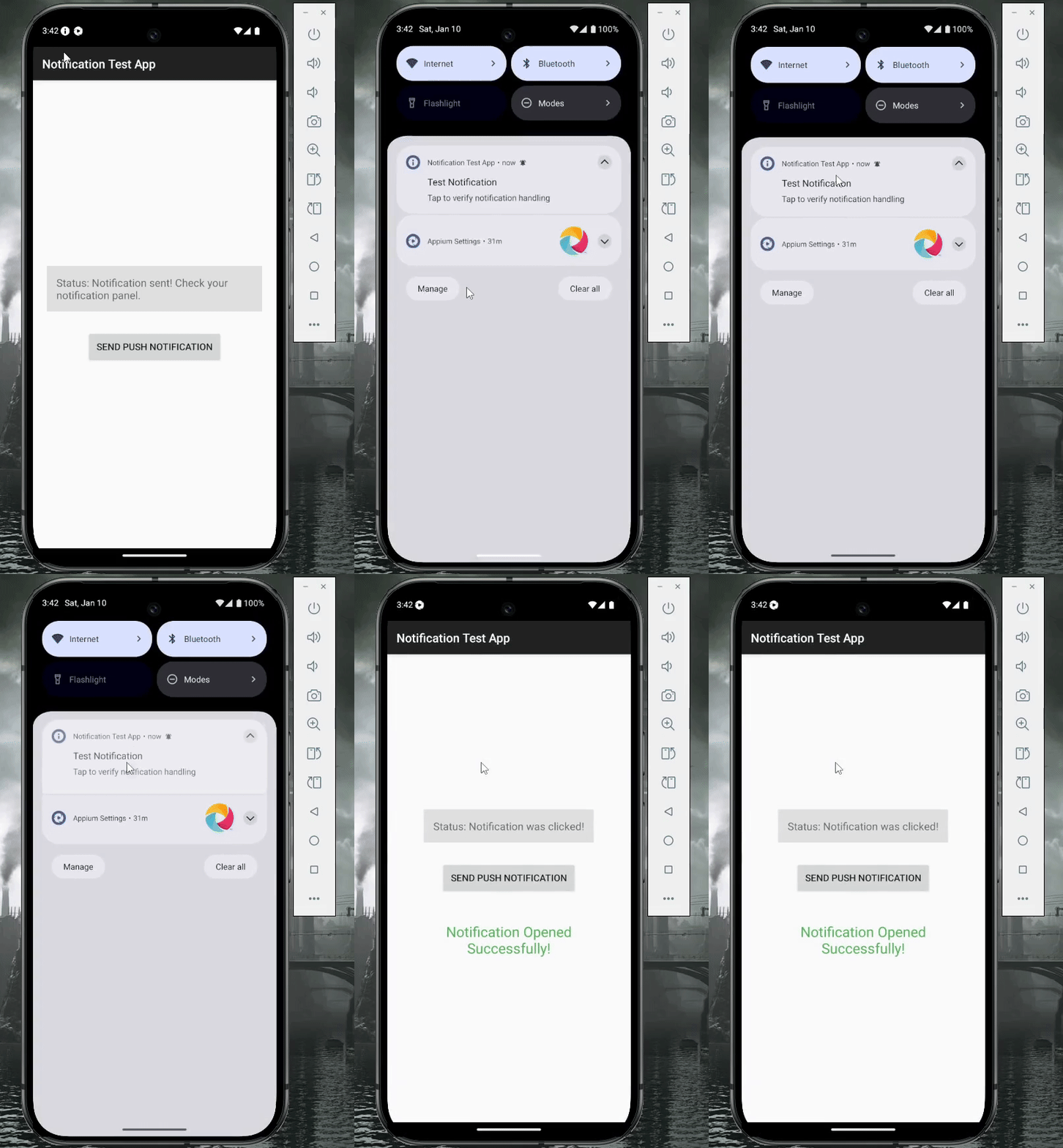
Push Notification Opening in the Demo App
Why use local notifications instead of remote push (FCM)? Local notifications are simpler to set up and don't require server-side configuration, making them perfect for learning notification testing. The good news is that the testing approach is identical whether you're testing local or remote notifications. Once you understand this pattern, you can apply it to FCM, OneSignal, or any other push notification service.
The complete source code for the demo app (also included) is available on GitHub. You can clone it and follow along with the tutorial.
Writing the Appium Test
Now let's write the actual test that automates our notification flow. We'll build this step by step, explaining each piece before showing the code.
Setting Up the Test Class
Every Appium test needs to establish a connection to your device and launch the app. We do this in a setup method that runs before each test. This ensures every test starts with a fresh app state, which is crucial for reliable testing.
The setup involves configuring Appium capabilities. These capabilities tell Appium which device to use, which app to launch, and how to behave. Here's what that looks like:
import io.appium.java_client.android.AndroidDriver
import io.appium.java_client.android.options.UiAutomator2Options
import org.openqa.selenium.By
import org.openqa.selenium.support.ui.ExpectedConditions
import org.openqa.selenium.support.ui.WebDriverWait
import org.testng.Assert
import org.testng.annotations.*
import java.net.URL
import java.time.Duration

class NotificationTest {
    private lateinit var driver: AndroidDriver
    private lateinit var wait: WebDriverWait

    @BeforeMethod
    fun setUp() {
        val options = UiAutomator2Options()
            .setDeviceName("emulator-5554")
            .setPlatformName("Android")
            .setAutomationName("UiAutomator2")
            .setApp("C:\\path\\to\\app-debug.apk")
            .setAppPackage("com.tgr.pushnotificationsdemo")
            .setAppActivity(".MainActivity")
            .setAutoGrantPermissions(true)
            .setNoReset(false)

        driver = AndroidDriver(URL("http://127.0.0.1:4723"), options)
        wait = WebDriverWait(driver, Duration.ofSeconds(15))

        Thread.sleep(3000)
    }
}
Let me break down the important capabilities. The setApp() points to your APK file path. The setAppPackage() and setAppActivity() tell Appium which Android app to launch and which screen to start on. The setAutoGrantPermissions(true) is particularly important because it automatically accepts the notification permission dialog on Android 13+, saving you from manually handling it in your test. The setNoReset(false) ensures the app data is cleared between test runs.
We also create a WebDriverWait object with a 15-second timeout. This will be used throughout the test to wait for elements to appear, which is much more reliable than using arbitrary sleep statements.
Understanding the Test Flow
Before we write the test code, let's understand what we're testing. The user journey looks like this: the app starts showing "Waiting for notification", the user taps the button, a notification appears in the drawer, the user taps that notification, and finally the app displays a success message. Our test needs to verify each step of this flow.
Step 1: Verify the Initial State
The first thing our test should do is confirm the app started correctly and is showing the initial waiting state. We need to find the status indicator element and check its text.
When locating Android elements in Appium, it's best to use fully qualified resource IDs. This means including the package name along with the ID, like com.tgr.pushnotificationsdemo:id/statusIndicator. This prevents conflicts if there are multiple elements with similar IDs.
@Test
fun testPushNotificationFlow() {
    val statusIndicator = wait.until(
        ExpectedConditions.presenceOfElementLocated(
            By.id("com.tgr.pushnotificationsdemo:id/statusIndicator")
        )
    )

    val initialStatus = statusIndicator.text

    Assert.assertTrue(
        initialStatus.contains("Waiting"),
        "Initial status should show 'Waiting for notification'"
    )
}
The wait.until() method is doing important work here. Instead of immediately looking for the element, it waits up to 15 seconds for the element to appear on screen. This handles cases where the app takes a moment to fully render. Once found, we grab its text and verify it contains "Waiting".
Step 2: Trigger the Notification
Now we need to find the button and click it to send the notification. This is straightforward element interaction.
val sendButton = driver.findElement(
    By.id("com.tgr.pushnotificationsdemo:id/sendNotificationButton")
)
sendButton.click()
Step 3: Verify Status Updated
After clicking the button, the status indicator should update to show the notification was sent. We'll wait for this text change to confirm the notification was actually created.
Thread.sleep(1000)
wait.until(
    ExpectedConditions.textToBePresentInElement(
        statusIndicator, "sent"
    )
)
Here we're using a different ExpectedConditions method that waits for specific text to appear in an element. This is more reliable than checking immediately because the UI needs a moment to update.
Step 4: Open the Notification Drawer
This is where Appium's power really shows. It has a built-in method specifically for opening the Android notification drawer. No need to figure out swipe gestures or coordinates.
driver.openNotifications()
Thread.sleep(2000)
The two-second sleep gives the drawer animation time to complete before we start looking for elements inside it.
Step 5: Find and Tap the Notification
Notifications in the drawer don't have resource IDs we can target, so we need to use XPath to find them by their text content. The contains() function makes our test more flexible by matching partial text.
val notification = wait.until(
    ExpectedConditions.presenceOfElementLocated(
        By.xpath("//*[contains(@text, 'Test Notification')]")
    )
)

Assert.assertTrue(
    notification.isDisplayed,
    "Notification should be visible in notification drawer"
)

notification.click()
Thread.sleep(2000)
Once we find the notification and verify it's displayed, we click it. This should bring our app back to the foreground with the success indicator visible.
Step 6: Verify the Success Indicator
When the notification is tapped, our app should show a success message. We wait for this indicator to become visible and verify its text.
val successIndicator = wait.until(
    ExpectedConditions.visibilityOfElementLocated(
        By.id("com.tgr.pushnotificationsdemo:id/notificationClickedIndicator")
    )
)

Assert.assertTrue(
    successIndicator.isDisplayed,
    "Success indicator should be visible"
)

val successText = successIndicator.text

Assert.assertTrue(
    successText.contains("Notification Opened Successfully"),
    "Success message should display correctly"
)
Step 7: Verify the Final Status
Here's where we encounter a common Appium challenge. After clicking the notification, the app refreshed, which means our original statusIndicator element reference is now stale (it's pointing to an old DOM element that no longer exists). We need to re-find the element to get the updated text.
val updatedStatusIndicator = driver.findElement(
    By.id("com.tgr.pushnotificationsdemo:id/statusIndicator")
)
val finalStatus = updatedStatusIndicator.text

Assert.assertTrue(
    finalStatus.contains("clicked"),
    "Status should indicate notification was clicked"
)
}
This is a critical pattern to understand. When the DOM refreshes, you can't reuse old element references. Always re-find elements after page transitions or refreshes.
Cleanup After Each Test
Finally, we need to close the driver after each test completes. This frees up resources and ensures the next test starts fresh.
@AfterMethod
    fun tearDown() {
        if (::driver.isInitialized) {
            driver.quit()
        }
    }
}
Best Practices
Now that you've got a working test, let's talk about writing maintainable, reliable tests that will serve you well in the long run.
Use explicit waits consistently. Every time you need to interact with an element, use WebDriverWait with ExpectedConditions. Reserve Thread.sleep() only for waiting on animations or visual transitions where there's no specific element state to check. Explicit waits make your tests both faster and more reliable because they proceed as soon as conditions are met rather than waiting arbitrary amounts of time.
Always use fully qualified element IDs. Include the package name in your locators like com.yourapp.package:id/elementId. This prevents conflicts and makes your tests more robust, especially if you're testing apps with similar element IDs or working with system dialogs.
Maintain test independence. Use @BeforeMethod and @AfterMethod instead of their @BeforeClass counterparts. Yes, your test suite will take longer to run, but independent tests are worth it. They can run in any order, won't mysteriously fail when run together, and make debugging much easier.
Test on real devices when possible. Emulators are great for development, but real devices expose issues emulators miss, like performance problems, memory constraints, and device-specific quirks. If you're serious about quality, run your test suite on at least one real device.
Add strategic logging. Print statements at each major step help you understand exactly where tests fail. Even better, capture screenshots on failure using driver.getScreenshotAs() so you can see what went wrong visually.
Keep tests focused. Each test should verify one specific flow. Our notification test checks the complete happy path from trigger to verification. If you want to test notification dismissal or multiple notifications, write separate tests. Focused tests are easier to debug and maintain.
Conclusion
Automated notification testing with Appium transforms a tedious manual process into a reliable, repeatable test that runs in seconds. The pattern you've learned here extends beyond this simple example. Whether you're testing FCM push notifications, handling notification actions, or verifying deep linking behavior, the fundamental approach remains the same: set up your driver, interact with elements using explicit waits, and verify expected outcomes at each step.
Start with this basic test and expand it as your notification features grow. Add tests for notification dismissal, different notification styles, or behavior when notifications arrive while the app is backgrounded. Each test you add catches potential regressions before they reach production. The complete code for both the demo app and test suite is available on GitHub. Clone it, run it, and make it your own.